Skip to content
Fleet Scanner
Hardware integration · Teltonika FMB140

Teltonika FMB140 CAN tracker, working inside Fleet Scanner

The Teltonika FMB140 CAN tracker is two devices in one box. It is a professional 2G GPS tracker and a CAN adapter. The CAN bus is the truck’s own data network. The FMB140 reads fuel, engine speed (RPM), mileage and vehicle state straight from it. It also has 1-Wire, three inputs and two outputs. Fleet Scanner turns all of it into live tracking, fuel reports, driver records and alerts.

2 CAN lines built-in3 · 2 · 2 DIN · DOUT · AIN1-Wire iButton + DallasBLE 4.0 sensors
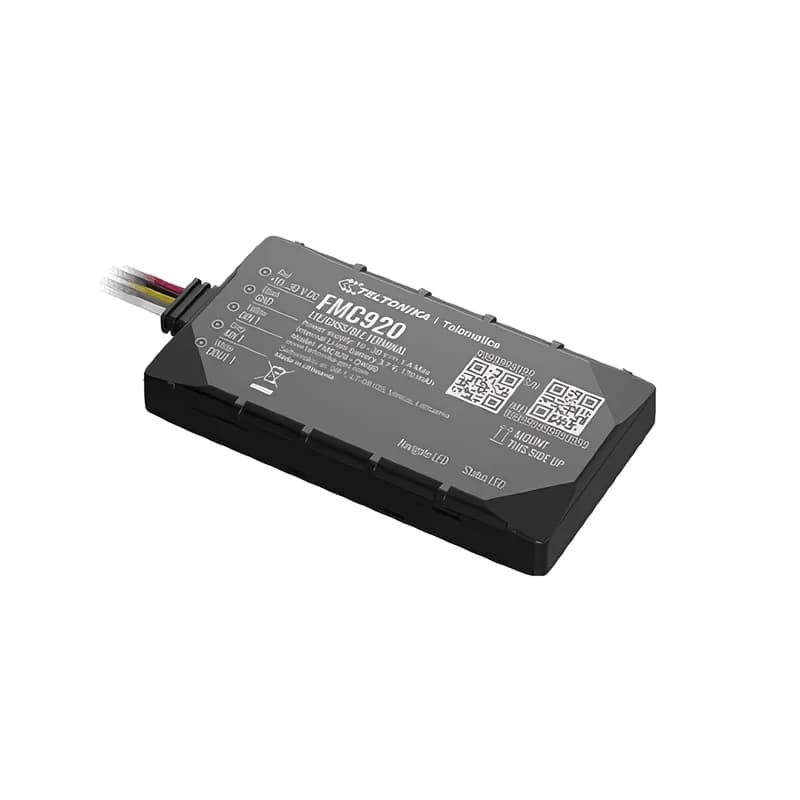
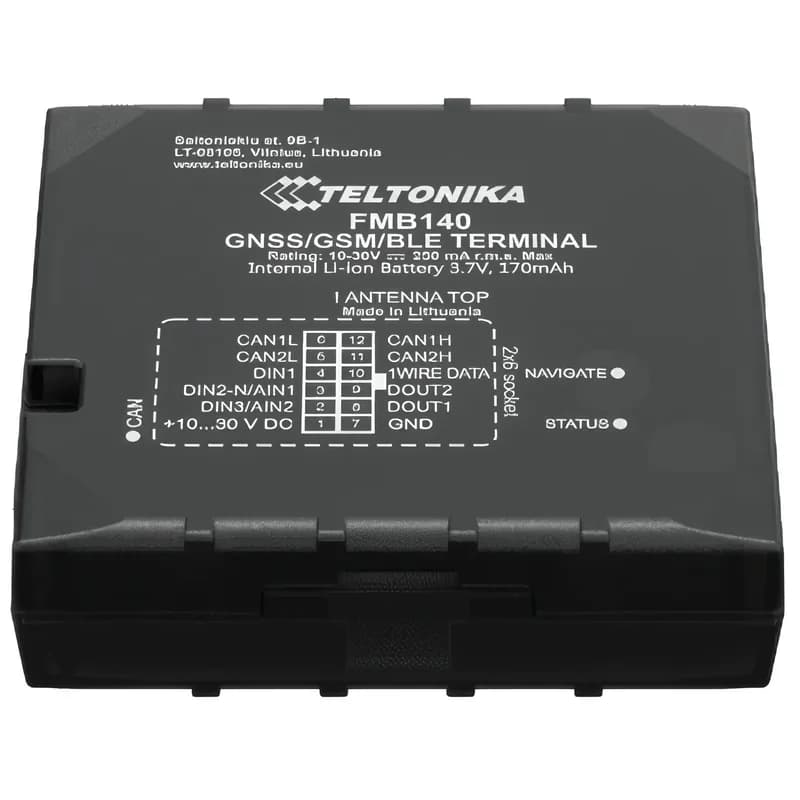
Teltonika FMB140 GNSS/GSM/BLE terminal with CAN connections
14firmware scenarios
2CAN interfaces
128 MBflash, about 422,000 records
170 mAhbackup battery
< 2.5 mGNSS accuracy (CEP)
live_position
Speed 64 km/hIgnition ON
01 · Live tracking · Permanent I/O

Live position, speed and ignition on one map

The FMB140 finds its position with GPS, GLONASS, Galileo and BeiDou. Every record has the position, speed, ignition and whether the vehicle is moving. Ignition (engine on or off) can come from four places. These are DIN1, the motion sensor, the vehicle’s power voltage or engine RPM on the CAN bus. So trips start and stop exactly when the engine does.

24 Speed239 Ignition240 Movement16/199 Odometer / trip250 Trip
GPS fleet tracking software →
can_bus · built-in
Fuel 74 %RPM 1,380
02 · CAN vehicle data · LV-CAN200 / ALL-CAN300

Fuel, RPM and mileage straight from the CAN bus

Two CAN lines connect straight to the vehicle. You don’t need a separate adapter. In LV-CAN200 mode, the FMB140 reads the dashboard fuel level, fuel used, wheel speed, distance, RPM and accelerator pedal. ALL-CAN300 mode reads more, such as AdBlue and engine lifetime. That extra data works on supported vehicles only.

84/89 Fuel level83 Fuel consumed85 Engine RPM81 Vehicle speed82 Accelerator pedal87 Total mileage+ ALL-CAN300 data (IDs 110–131)
Fuel monitoring system →
fuel · CAN + GNSS
Level 412 LDrop -47 LTheft flag
03 · Fuel monitoring · CAN + analog

Fuel graph with refuels and fuel theft flags

Fuel data can come from the CAN bus. It can also come from analog fuel level sensors on the two analog inputs, or from the GNSS Fuel Counter. Fleet Scanner puts it all into one graph. It tells real refuels apart from stolen fuel (siphoning). It flags sudden drops the day they happen.

84 CAN fuel level9/6 Analog input 1/212/13 Fuel used / rate (GPS)
Fleet fuel management software →
driver_auth · 1-WireA3 41 9F 00
AuthorisedImmobiliser RELEASED
04 · Driver identification · 1-Wire

iButton driver ID with an immobiliser

An iButton is a small driver key that the driver touches to a reader. Fleet Scanner matches each iButton read to a driver. So trips, fuel and driving events belong to the right person. The Immobilizer feature keeps the engine blocked until an approved key is used.

78 iButton ID248 Immobilizer
Driver management software →
temperature · 1-Wire + BLE
Zone 1 -18.4 °CZone 2 4.1 °C
05 · Temperature · 1-Wire + BLE

Dallas probes and Bluetooth sensors for fridge (reefer) loads

You can use up to four wired Dallas 1-Wire temperature probes. You can also use Bluetooth temperature and humidity sensors. Each one reports for its own zone. Fleet Scanner saves every reading with the trip. It alerts you when a load goes outside its range.

72–75 Dallas temp 1–476/77/79/71 Dallas sensor IDs25–28 BLE temp #1–4
Cold chain tracking →
driving_events · accelerometerX -612Y 180Z 990
Harsh brakingScore -2 pts
06 · Driving behaviour and safety · Eventual I/O

Green driving, crash, towing and jamming

The FMB140 flags harsh acceleration, braking and cornering. It also catches speeding and too much idling. It notices crashes and saves a crash trace (a record of the moments around it). It also notices towing, unplugging and GSM jamming, which is someone blocking the mobile signal. Fleet Scanner puts these into driver scorecards and instant safety alerts.

253/254 Green driving255 Over speeding251 Idling247/257 Crash / trace246 Towing249/318 Jamming
Driver scorecards →
digital_io · in / outDIN1 Ignition ONAIN1 12.4 VDOUT1 Relay OFF
Door OPENRelay OFF
07 · Inputs and outputs · Permanent I/O

Panic button, door sensor and starter-cut relay

Three digital inputs can carry panic buttons, door sensors and PTO (power take-off) sensors. DIN2 and DIN3 can also work as analog inputs. DIN2 can also work as a ground-sense input. Two open-collector outputs can drive a buzzer or a starter-cut relay. That relay is a switch that stops the engine from starting. You switch the outputs from Fleet Scanner.

1/2/3 Digital input 1–39/6 Analog input 1–2179/180 Digital output 1–2381 Ground sense
Fleet alerts management software →
device_health · power12.6V
Ext 27.4 VGSM 5/5
08 · Power and diagnostics · Permanent I/O

Voltage, battery and signal health

Every record has the vehicle’s power voltage, the backup battery, the GSM signal and sleep mode. Fleet Scanner alerts you when a tracker loses power or goes quiet. So you know why tracking stopped, instead of finding out weeks later.

66 External voltage67/68 Battery V / current113 Battery level21 GSM signal200 Sleep mode
Fleet reports and dashboards →

FMB140 specifications

Network2G GSM quad-band 850/900/1800/1900 MHz, GPRS class 12
GNSSGPS, GLONASS, Galileo, BeiDou, QZSS, AGPS; 33 channels
Accuracy< 2.5 m CEP; hot start < 1 s
Power supply10 to 30 V DC with overvoltage protection
Backup battery170 mAh Li-Ion
Inputs / outputs3 digital inputs (DIN2/DIN3 configurable as analog), 2 digital outputs
Interfaces2 CAN lines (built-in CAN adapter), 1-Wire, Bluetooth 4.0 + LE
Memory128 MB flash
Size / weight65 x 56.6 x 20.6 mm, 55 g, IP41
CertificationsE-Mark, CE/RED, EAC, Anatel, RoHS, REACH
Fleet Scanner port11922 (TCP)

Specifications can differ between hardware revisions. Check the manufacturer’s datasheet for your exact unit.

How to connect the FMB140 to Fleet Scanner

  1. Fit the FMB140 under the dashboard. Connect power, ground and ignition. Connect CAN H and CAN L to the vehicle’s CAN bus, or use the contactless CAN reader.
  2. Open the Teltonika Configurator and choose the CAN program for the vehicle. Set the APN (your SIM’s internet settings). Then enter your Fleet Scanner server’s domain or IP, port 11922 and protocol TCP (Codec 8 Extended).
  3. In Fleet Scanner, add the device by its IMEI number and assign it to a vehicle.
  4. Check the first trip on the live map. Then make sure CAN fuel, RPM and mileage show in the vehicle details.

Teltonika FMB140 FAQ

Does Fleet Scanner support the Teltonika FMB140?

Yes. Fleet Scanner reads the FMB140’s position, ignition and CAN data. It also reads 1-Wire iButton keys and temperature probes, Bluetooth sensors, inputs and outputs and driving events. It reports on port 11922.

Does the FMB140 need a separate CAN adapter?

No. The FMB140 has two CAN lines and a built-in CAN data processor. So it reads CAN data directly in LV-CAN200 or ALL-CAN300 mode.

What is the difference between the FMB140 and the FMB120?

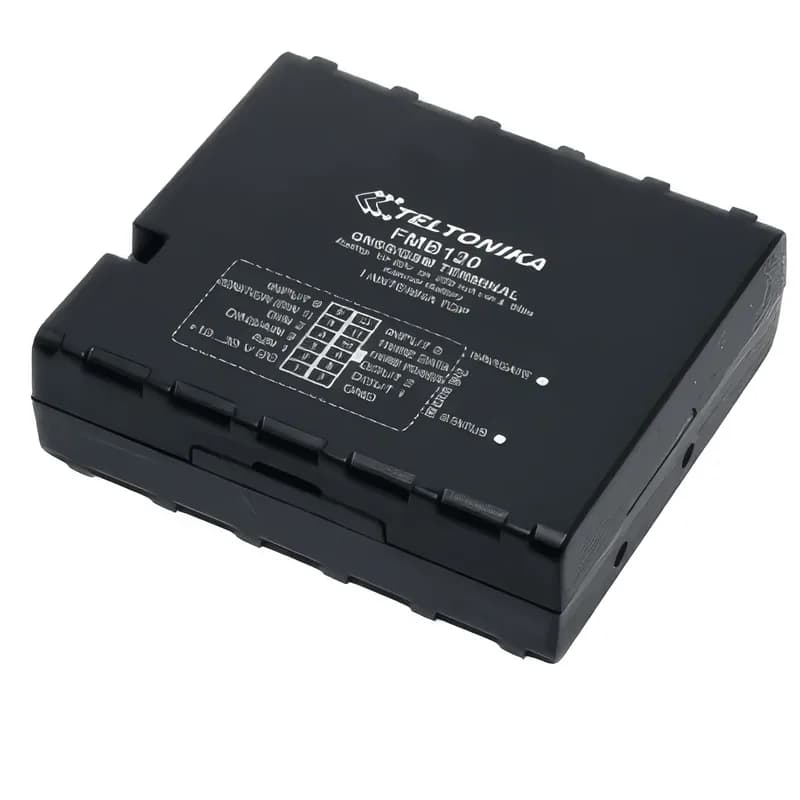
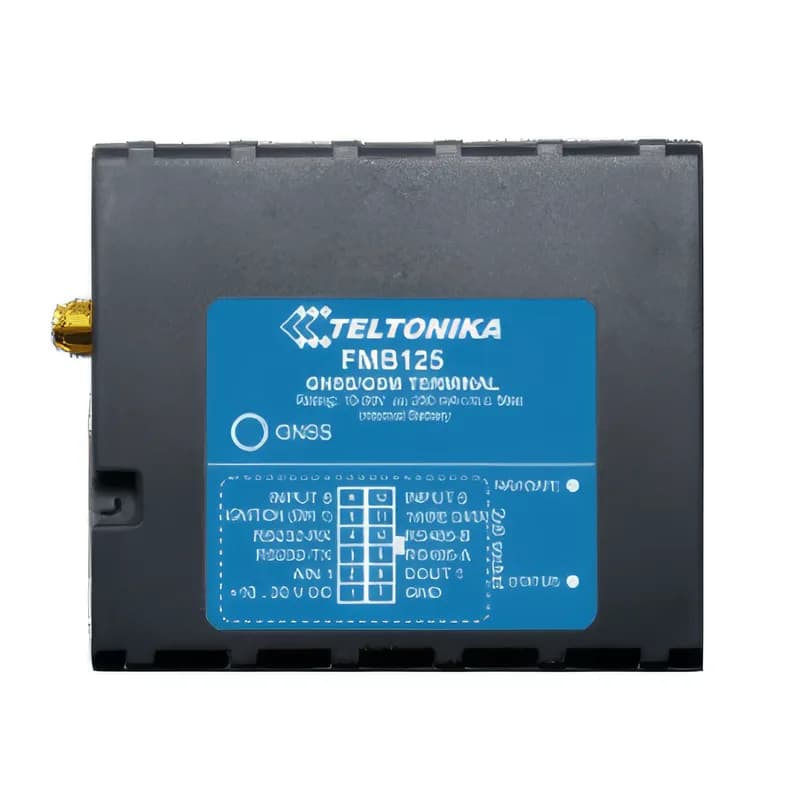
Both are 2G trackers with 1-Wire and Bluetooth. The FMB140 reads CAN data on its own. The FMB120 needs an outside CAN adapter, such as the LV-CAN200 or ALL-CAN300.

Is the FMB140 4G?

No. The FMB140 is 2G only. For a 4G tracker that works with a CAN adapter, see the Teltonika FMC130.

FMB140 plugged in. Fleet running on one platform.

From a single tracker to a mixed fleet across 1,000+ device models: live tracking, alerts, fuel, drivers, maintenance and reports in one self-hosted platform. See it with your own hardware.

Get a free demo

More supported GPS trackers

Parameter IDs are Teltonika AVL IDs listed for the FMB140; CAN IDs depend on the vehicle and the CAN program. Teltonika and FMB140 are trademarks of Teltonika Telematics. Specifications from the Teltonika FMB140 datasheet.

Take Control with
Fleet Tracking

Track vehicles in real time, optimize routes, and take full control of your fleet operations.

Free Demo